Assets Catalogue
You can use the assets catalogue to share notebook files, workflow components, and workflow files. Assets can be shared directly with another user, with a virtual lab, or with a community.
Discovering assets
Start by selecting the kind of asset that you to explore.
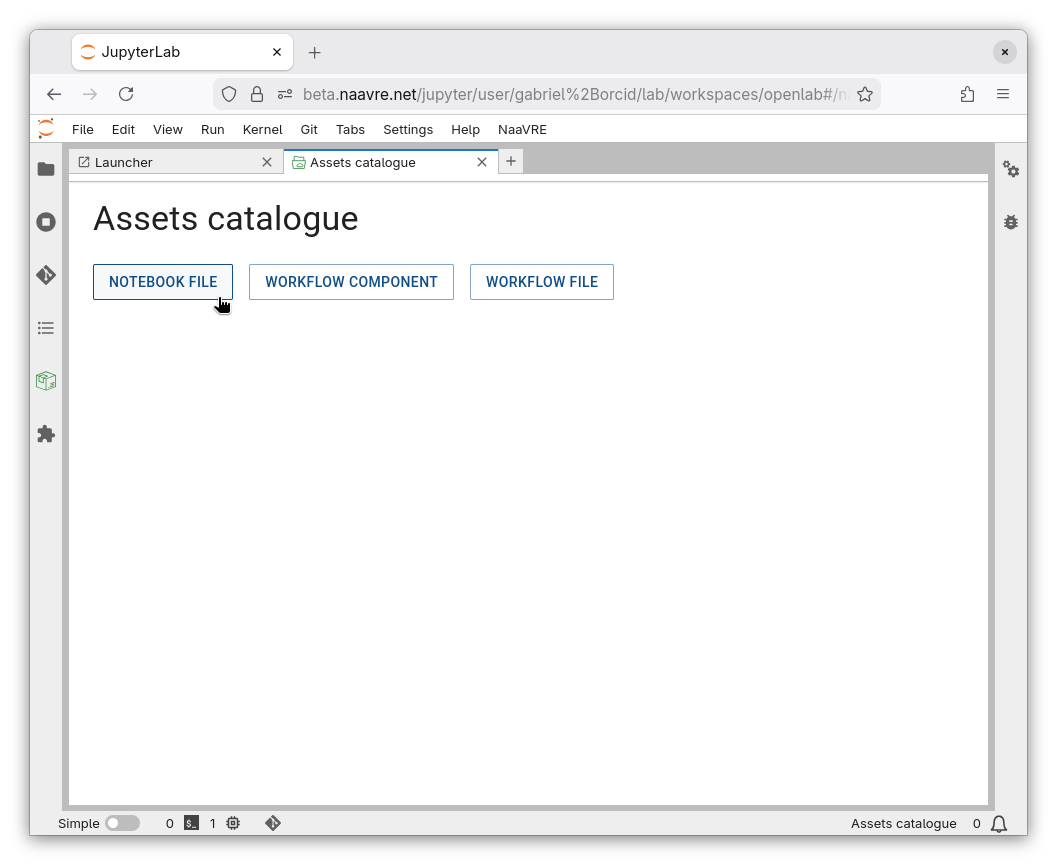
You can see the available assets.
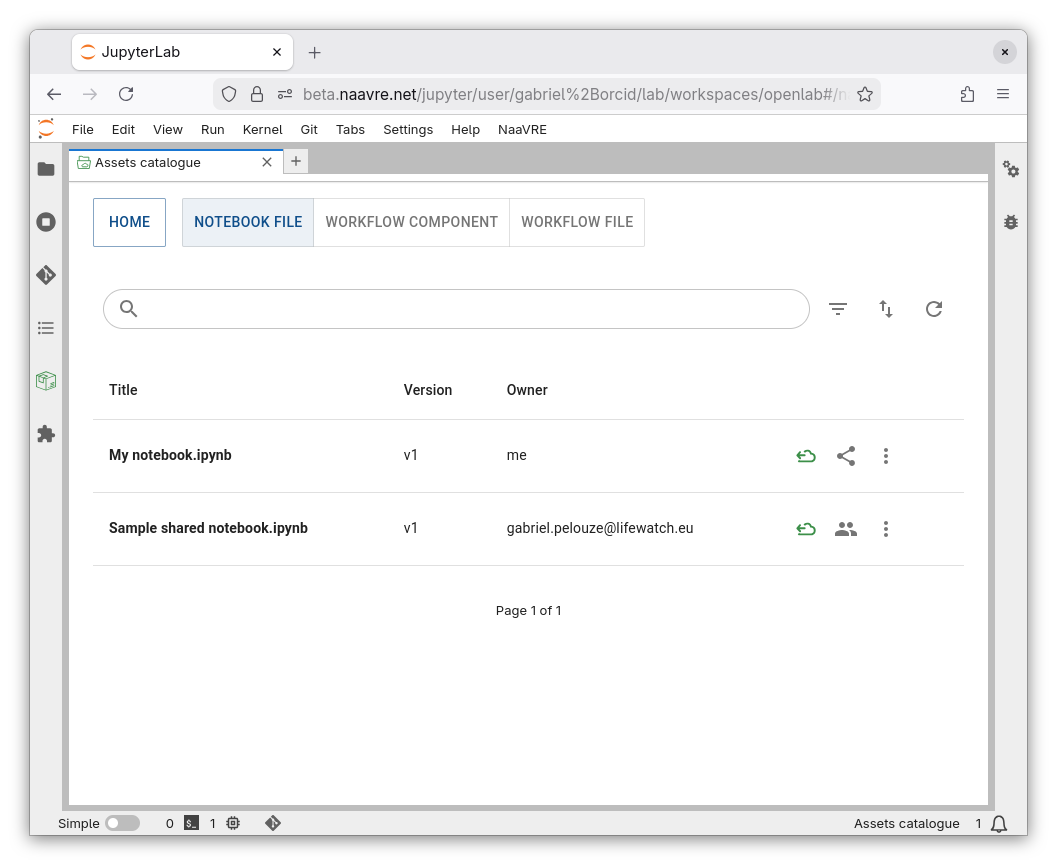
By default, assets are displayed if they are either:
- owned by you,
- shared directly with you,
- shared with the current virtual lab or communities.
You can display other assets (e.g. ones shared with other labs or communities) by clicking the filter icon
.Sharing assets
To share an asset, click on
. You can select users, communities, or virtual labs.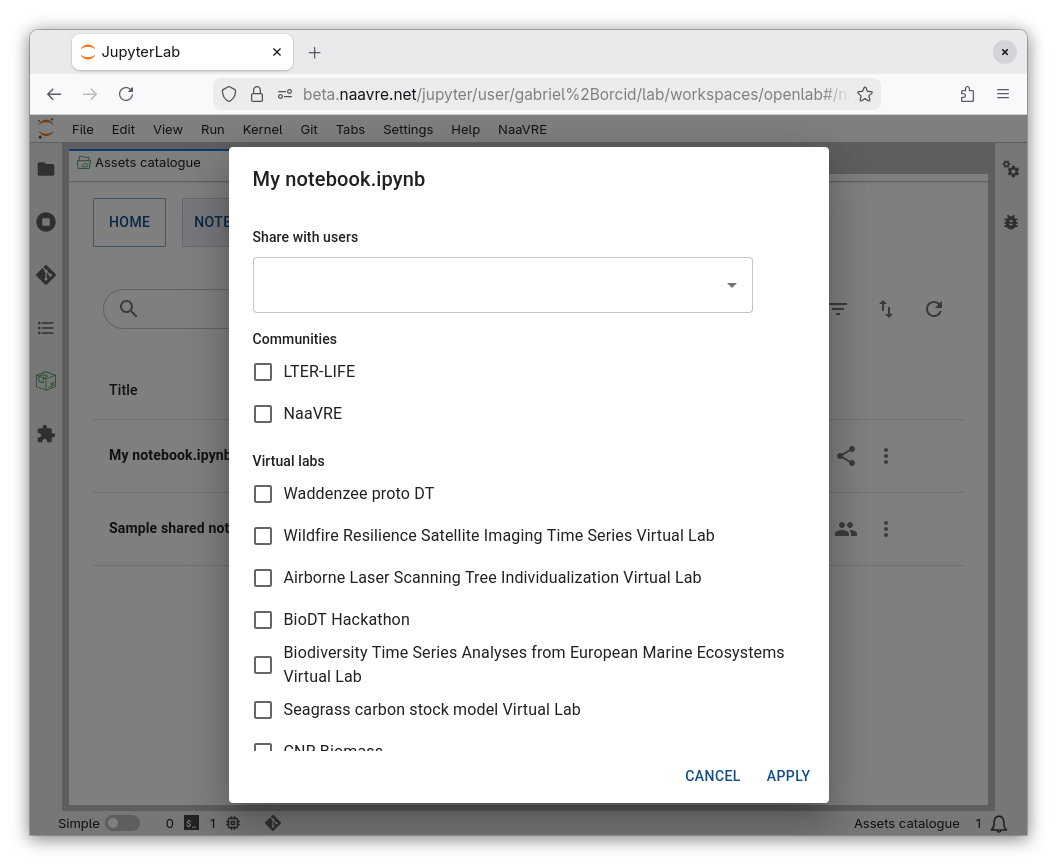
Once an asset is shared, you can click on
to update sharing permissions.Assets shared with a community or virtual lab are visible everyone. Please only share assets that are useful to others.
Adding assets to your files
To add an asset to your Jupyter Lab files, click on Add to my files (
).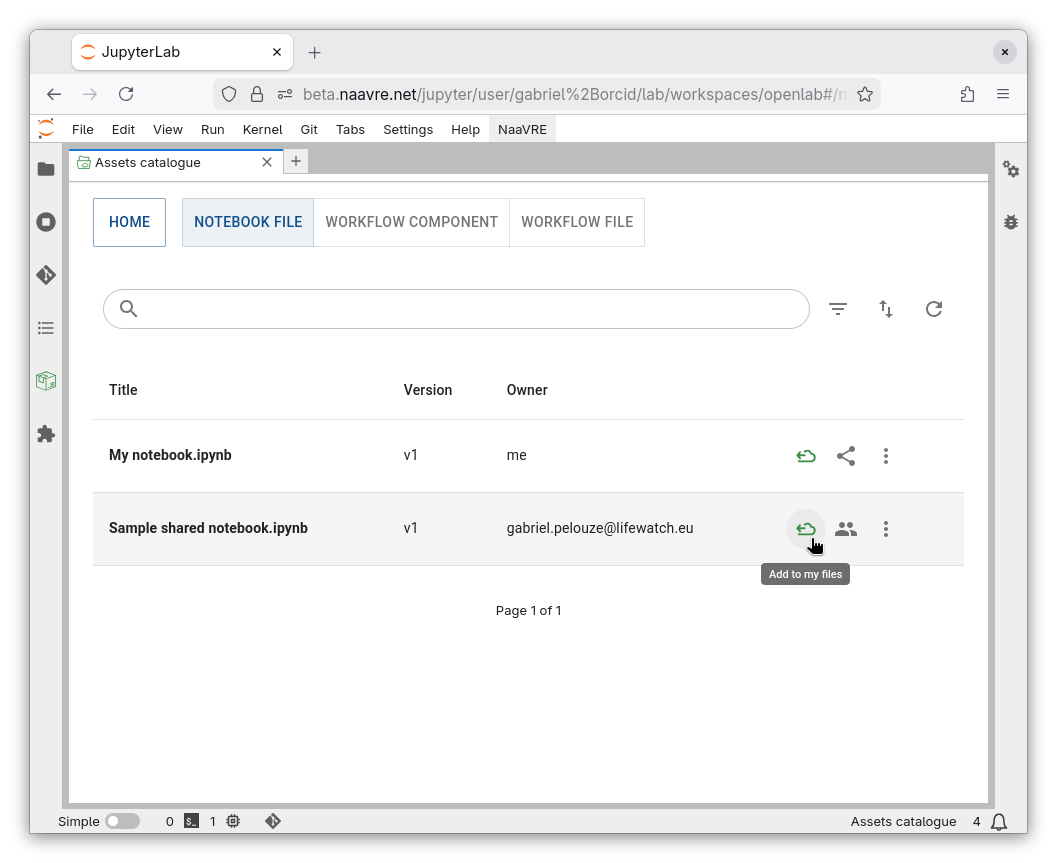
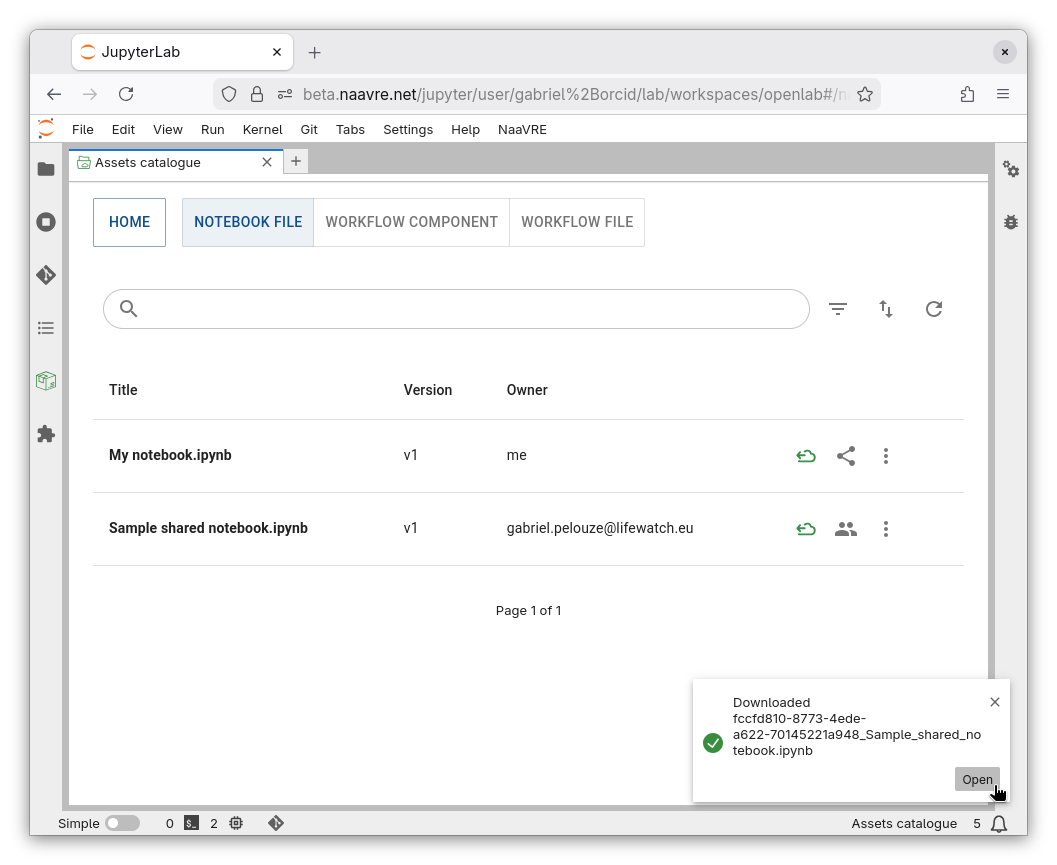
The file is copied to your local home directory on Jupyter Lab (/home/jovyan/).
Click on “Open” to view or edit it.
Adding files to the catalogue
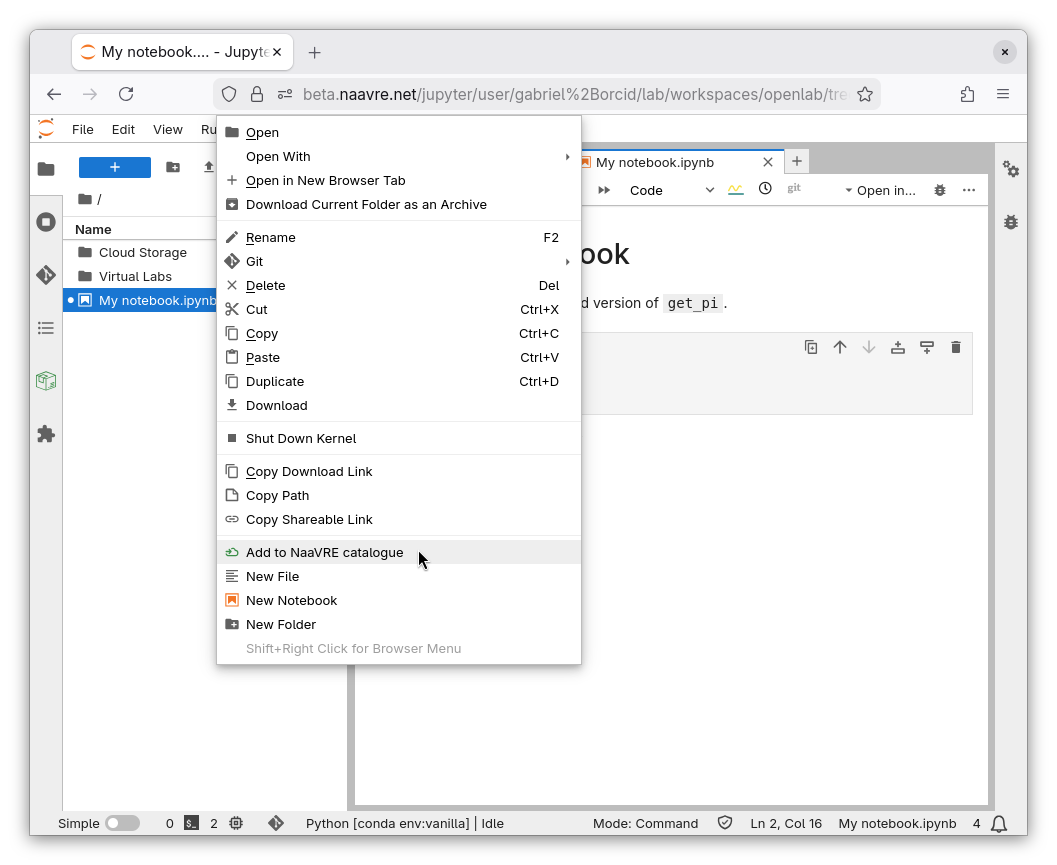
To add file to the catalogue, right-click on it and select Add to NaaVRE catalogue (
). You can add notebooks (.ipynb) and workflow files (.naavrewf).
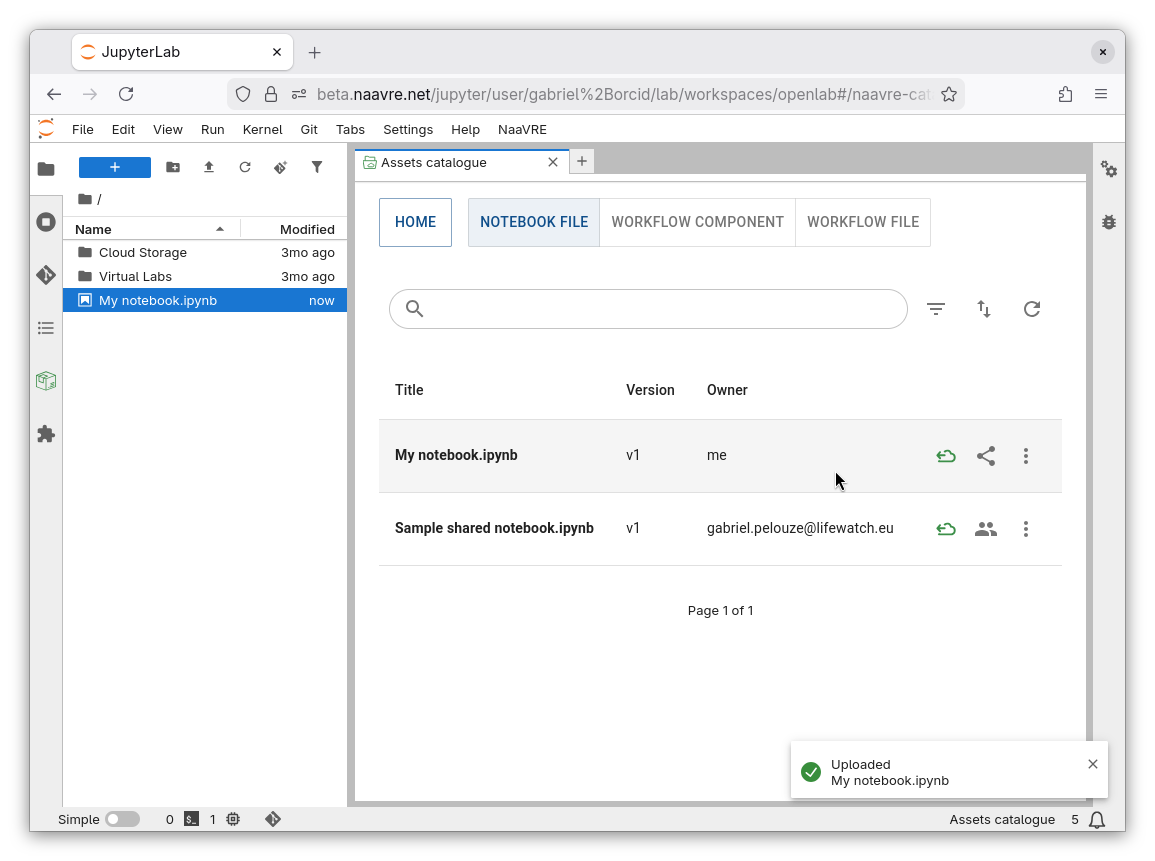
The file is added to the catalogue. Refresh the list to see it (
).
Deleting assets
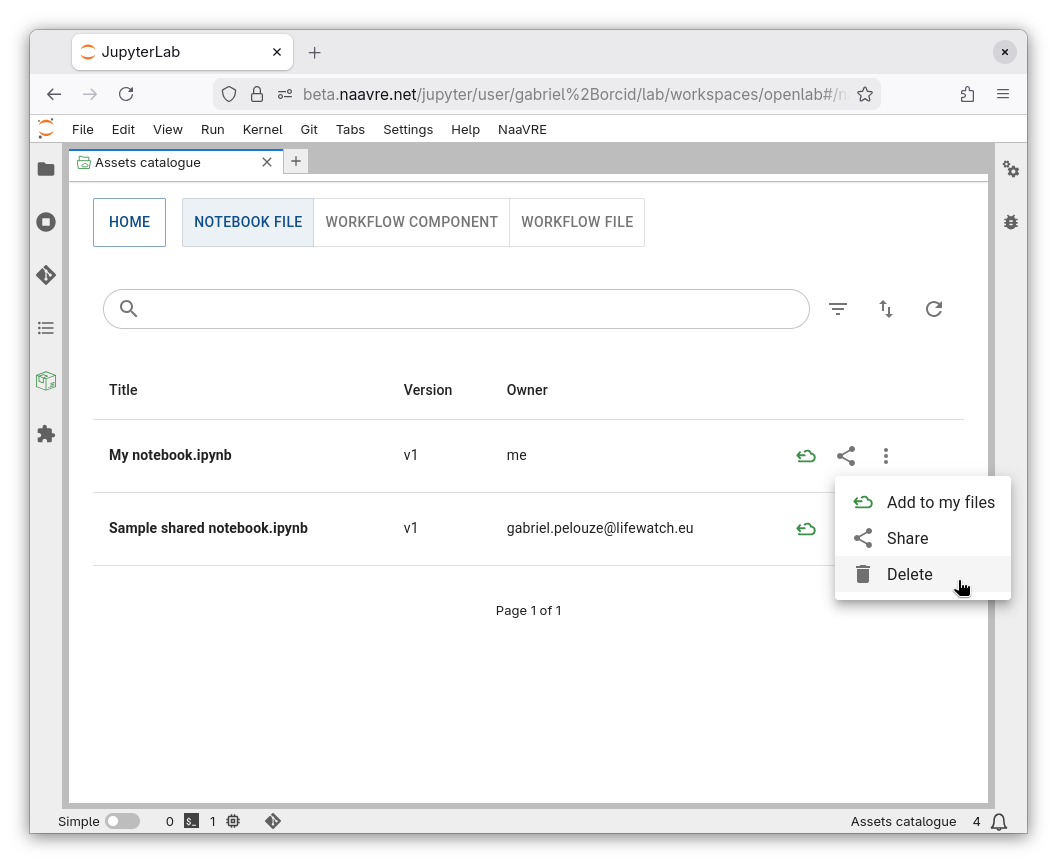
You can delete any asset by clicking on the three dots and selecting Delete (
).