Jupyterlab-git
The JupyterLab-Git extension allows you to use Git directly in your virtual lab environment.
Folder structure
Each virtual lab contains two dedicated folders:
- My data (e.g.,
Virtual Labs/Open Lab/My data):- Use this folder to store your personal assets, including source code and workflows.
- This is your workspace.
- Git public (e.g.,
Virtual Labs/Open Lab/Git public):- Contains public assets available to all users of the virtual lab.
- Do not save files here, as they may be overwritten or lost.
- If you want to modify files from Git public, copy them to
My datafirst.
Cloning a Git repository
Currently the Jupyterlab-git feature has a bug breaking the clonining of a repo using the user interface. In stead you can clone a repo using a terminal (available in the launcher). Open a terminal and execute the following command:
git clone <URL e.g. https://github.com/NaaVRE/vl-openlab.git>
To clone a Git repository into your virtual lab:
- Navigate to the
My datafolder in JupyterLab. - Open the Git extension.
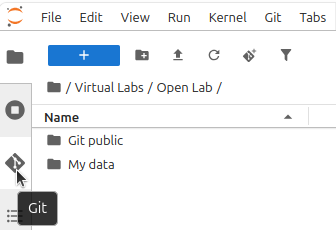
- Click
Clone a repository.
Pushing changes to a git repository
The push button in the git-extension is currently broken. You can use Push to remote in the Git menu in the items instead:
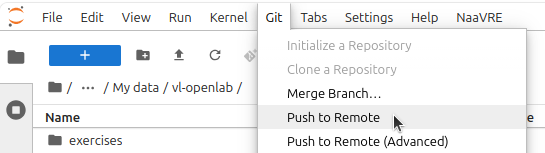
If you have write access to the repository, you can push changes using a fine-grained GitHub personal access token:
- Generate a token in GitHub:
- Go to GitHub personal access tokens.
- Create a fine-grained token with the following minimum permissions for the repository:
- Read access to metadata
- Read and write access to code
- Use this token to authenticate when pushing changes from JupyterLab-Git.
Recommended .gitignore
To avoid committing unnecessary or sensitive files, use a .gitignore file in your repository. We recommend including at least the following:
# Jupyter notebook checkpoints
.ipynb_checkpoints

# Environment variables (contains secrets)
.env
The .env file is used by SecretsProvider to store secrets and must not be committed to the repository.