Experiment Manager
In the 'Experiment Manager' page you can compose and execute workflows.
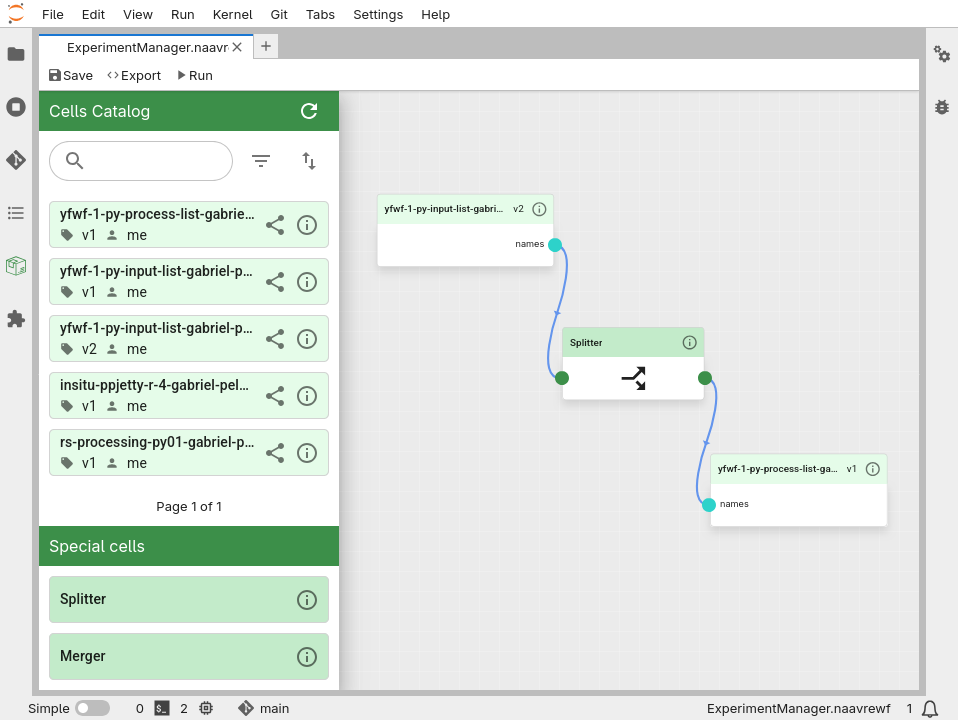
Cells Catalog
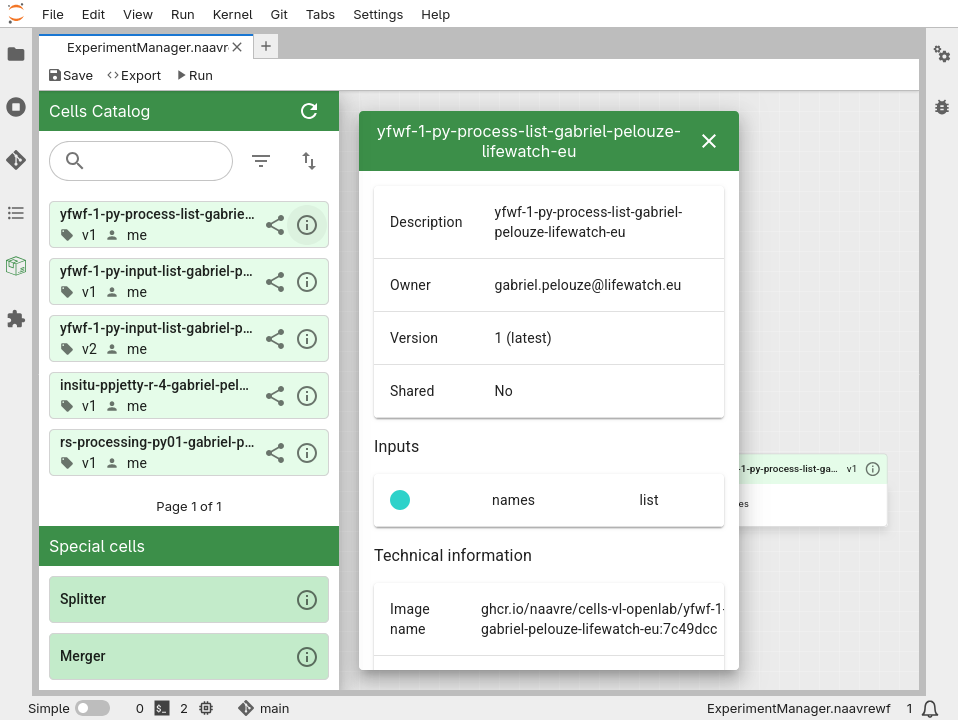
The cells catalog contains all the cells that have been containerized.
Special Cells
In the 'Experiment Manager' page you can compose workflows using special cells. These components are:
- Splitter: This component is used to split an output array from a call into its elements and feed each element to the next cell. That way the next cell will be executed in parallel as many times as the number of elements in the array.
- Merger: This component is used to merge the outputs of multiple cells into a single array.
- Visualizer
Sharing Cells
To share a cell, click on
. You can select users, communities or virtual labs: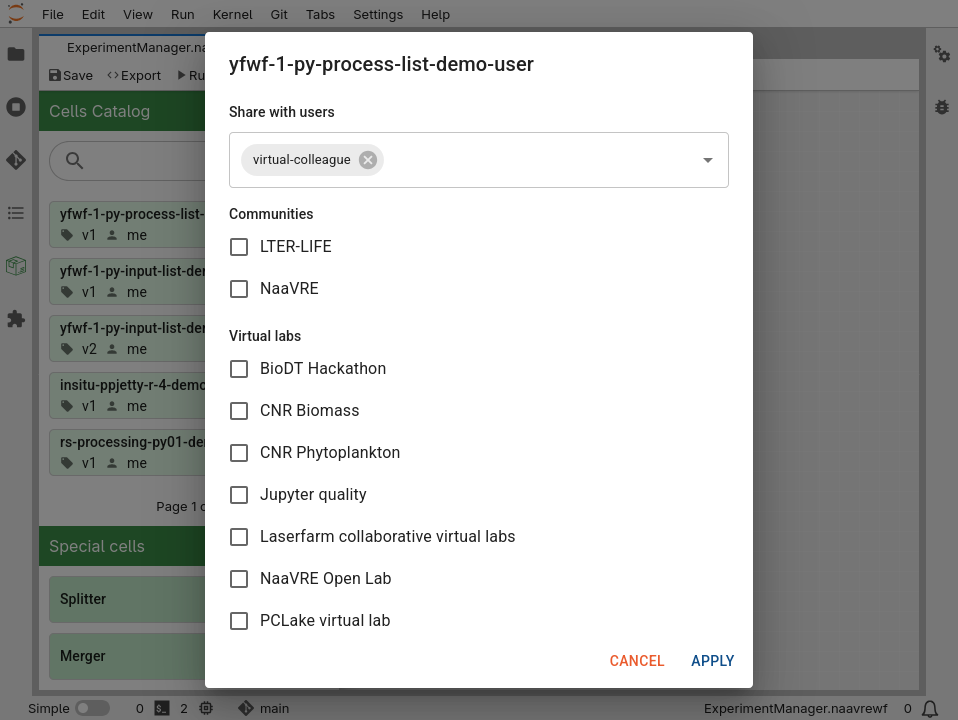
Once a cell is shared, you can click on
to update sharing permissions.Cells shared with a community or virtual lab are visible everyone. Please only share cells that are useful to others.
Cells that are shared with you show up directly in your catalogue:
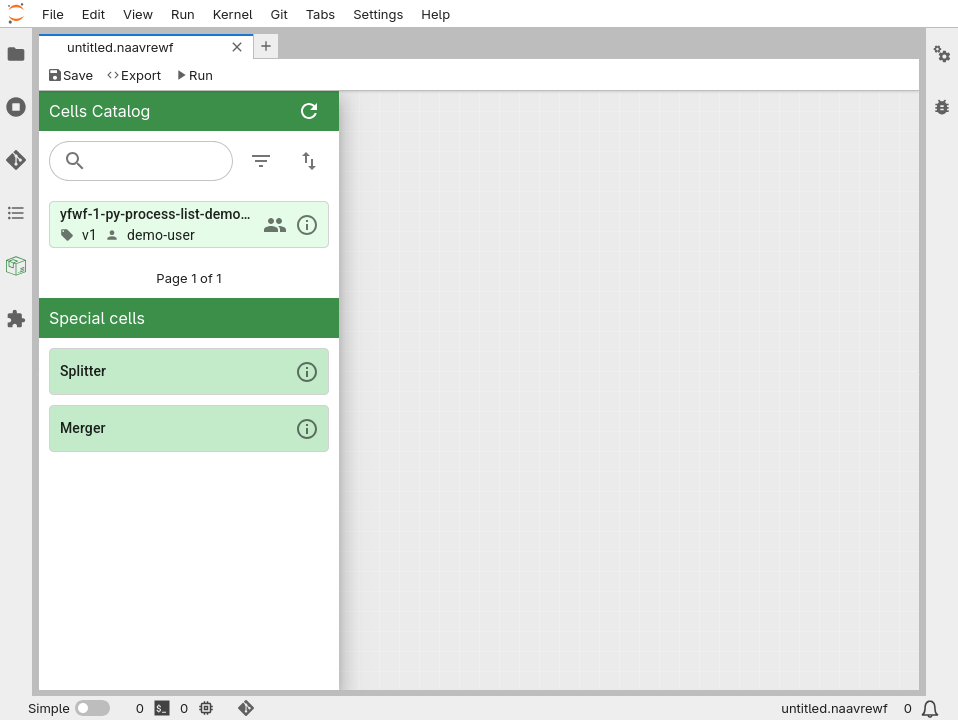
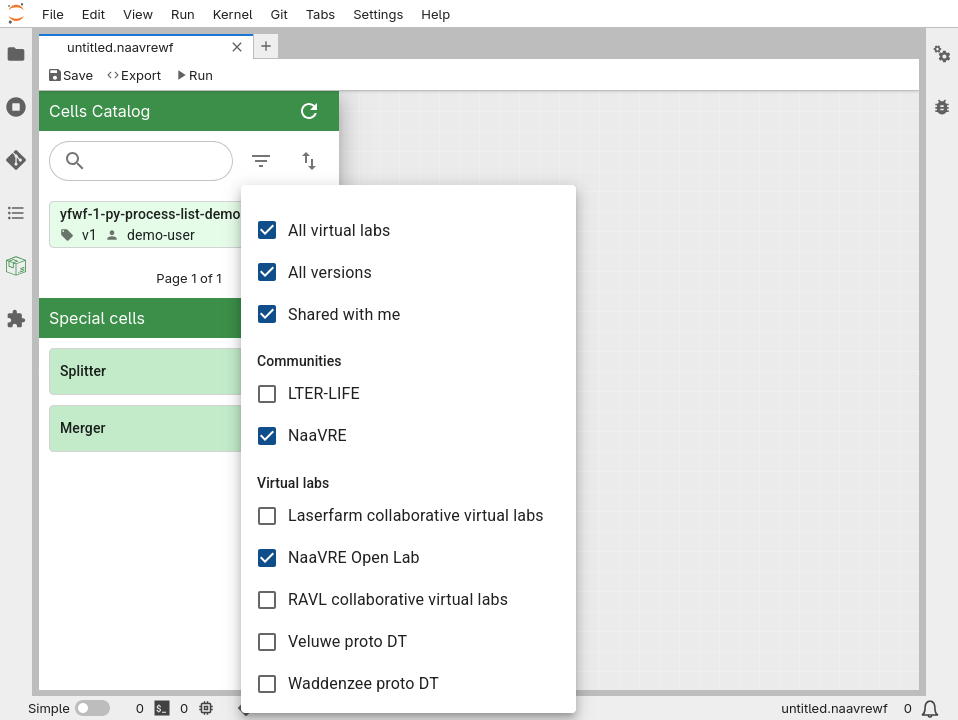
Cells shared within communities or virtual labs are only shown if they are relevant to the current virtual lab that you are running. For instance, when running the “Open Lab”, only cells shared with the “NaaVRE” community and the “Open Lab” lab are shown by default. To display cells from other communities or labs, click on the
:
Re-containerizing cells used in a workflow
When re-containerizing a cell used in a workflow, you might need to update the workflow itself:
- If you only updated the cell's source code or dependencies: the workflow automatically uses the new version of the cell.
- If you changed the cell’s inputs, outputs or parameters: the workflow needs to be updated. Remove the cell from the workflow, and add the new version from the catalogue.
- If you changed the cell’s title: a new cell is created in the catalogue. Both the old and new cell can be used. Workflows using the old cell don’t need to be updated.
Managing files in workflows
To transfer files between containerized cells when running the workflow, they need to be placed in the /tmp/data/ repository. Files outside of this repository are not preserved from one containerized cell to the other.
The best practice for exchanging files between cells is to save the file in /tmp/data/, and pass the filename between the cells. Example:
# Write file
filename = '/tmp/data/my_file.csv'
with open(filename, 'w') as f:
    f.write('file content')
# Read file
with open(filename, 'r') as f:
    data = f.read()
